LTI Advantage Install Guide for BrightSpace D2L
Introduction
Technologies from Praxis AI including Pria and the Learning Experience Platform can be added to your LMS using the LTI Advantage v1.3 protocol.
This guide detailed how to add Praxis LTI tools such as Pria and the LXP to your BrightSpace D2L instance.
Login as Admin
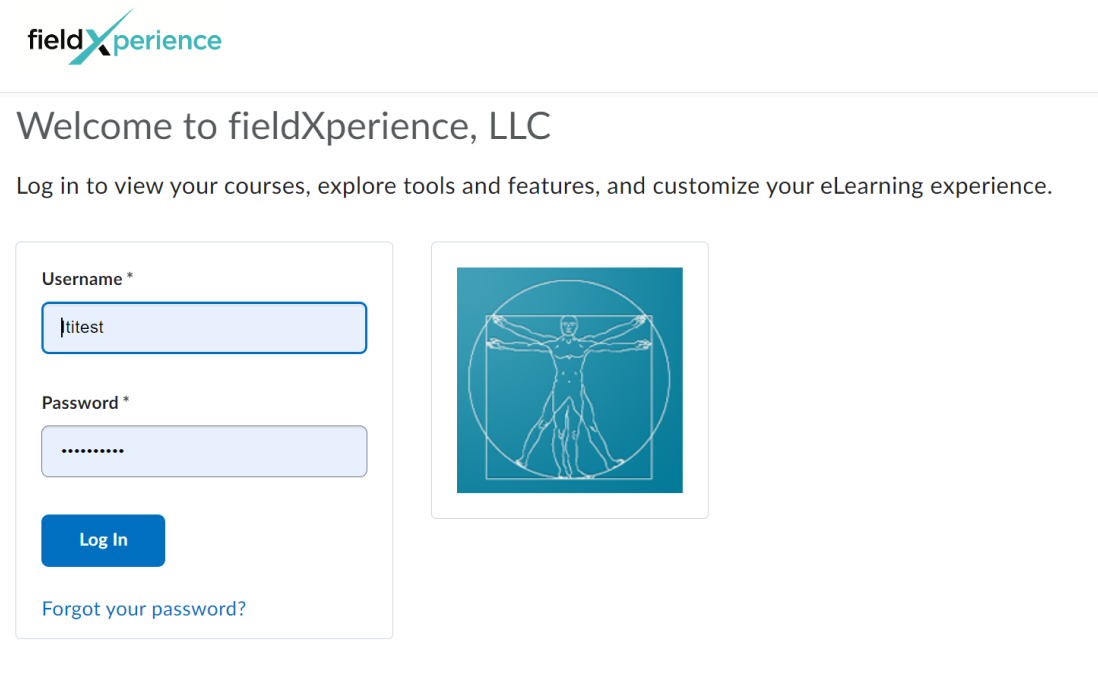
Login to your BrightSpace D2L insurance with an Administrator account. The following documentation features the setup using the FieldX account.
Register the LTI Tool
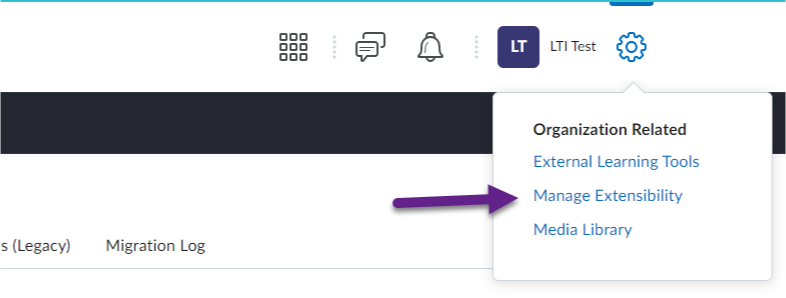
To add an LTI tool click the Gear menu on the top right corner, then select Manage Extensibility from the top Organization Related activities.
Select LTI Advantage, then Register Tool
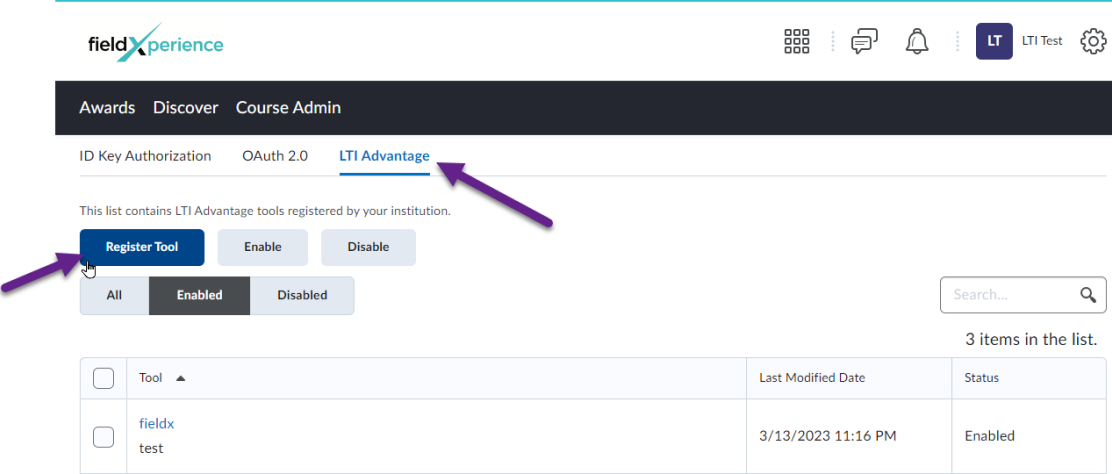
The Praxis LTI Tools support LTI 1.3 Advantage and can be registered in a single click.
In the Register Tool, select Dynamic. The advantage registration URLS are:
https://lti.praxislxp.com/register for LXP
https://prialti.praxislxp.com/register for Pria
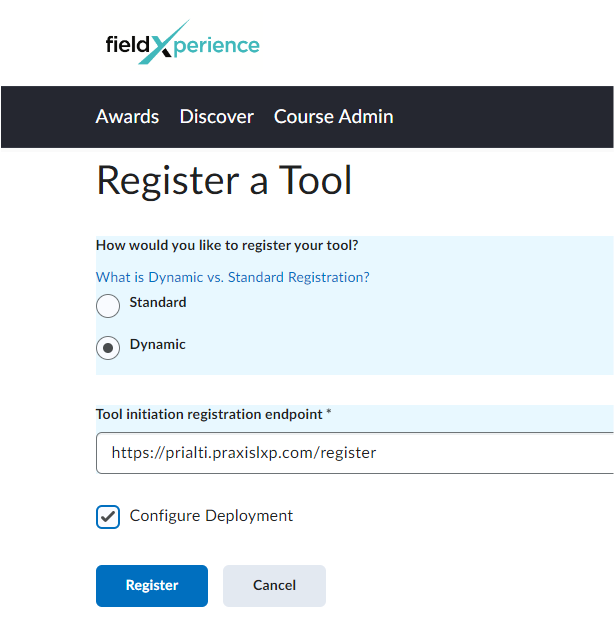
Once the tool has been registered, you can edit the custom properties.
Here for the LXP
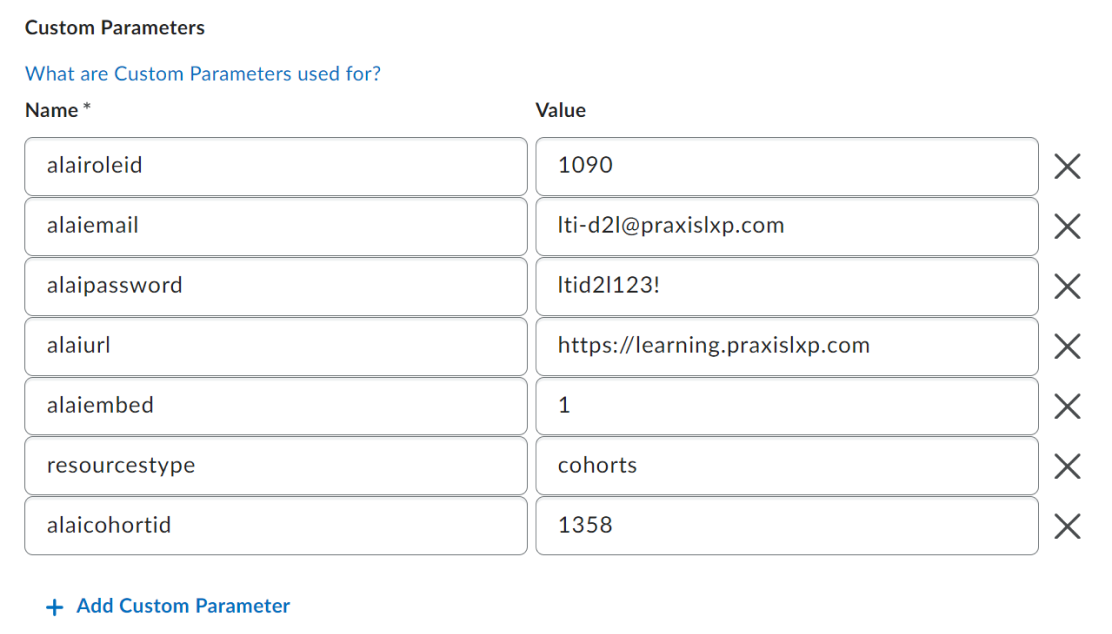
Note: Contact Praxis to customize the values of those properties specific to your institution
Here for Pria:
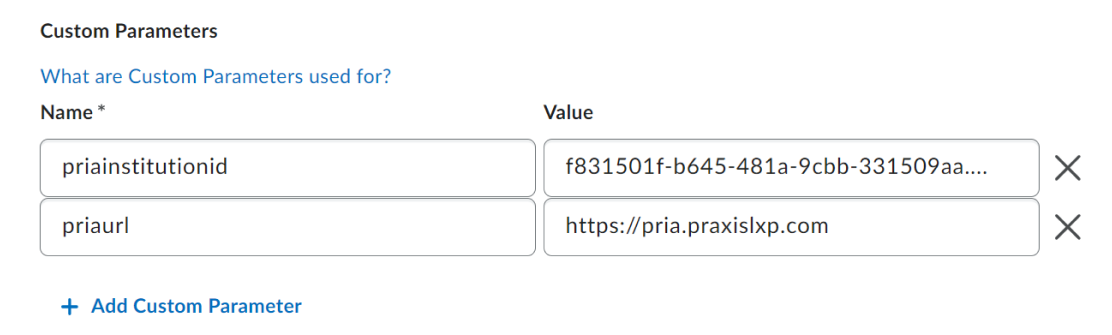
Note: Contact Praxis to customize the values of those properties specific to your institution. Leave as-is to enable the Digital Twin and let faculty staff create their own instance.
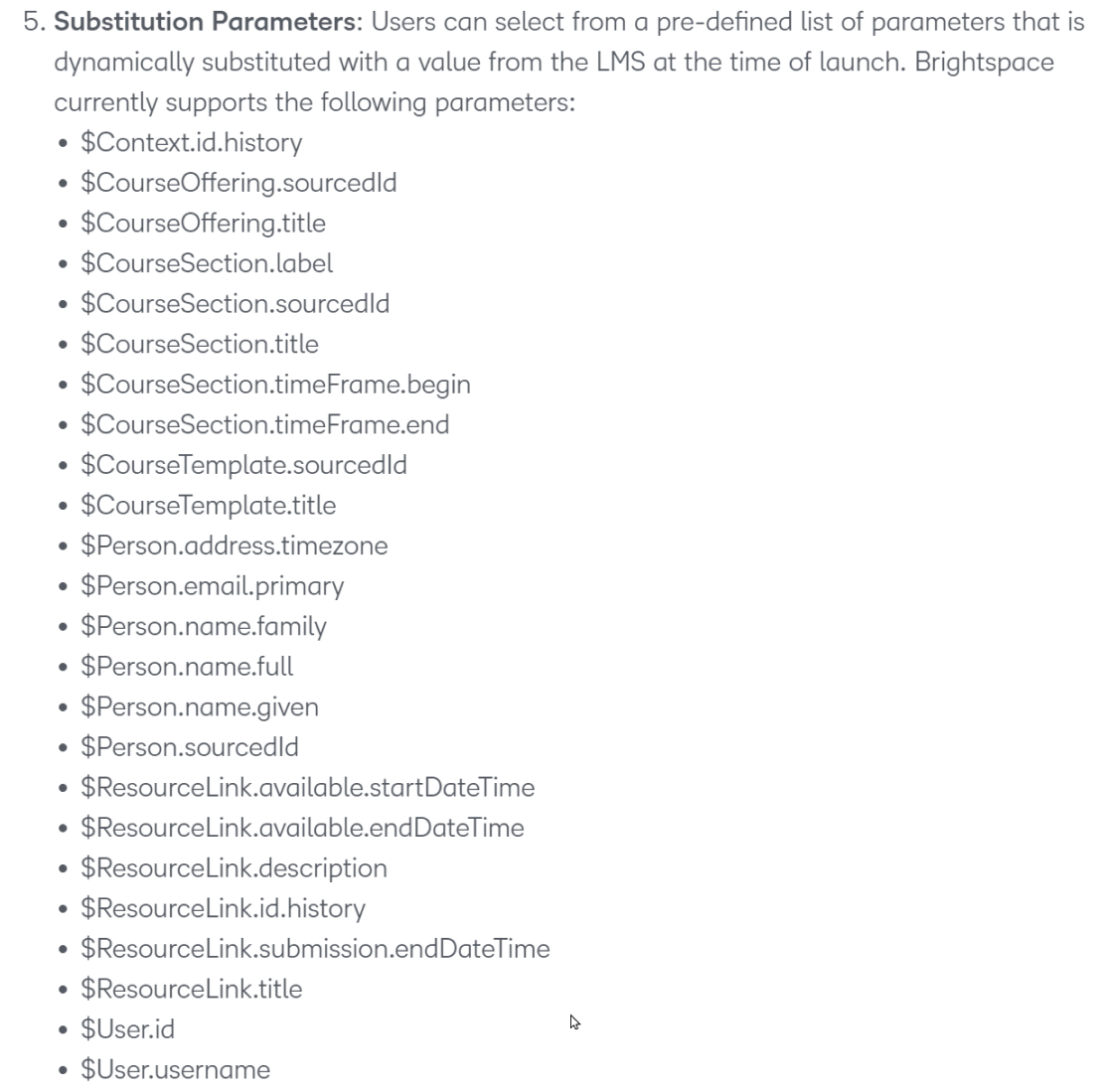
Substitution Parameters:
The LTI Component need to have additional properties to correlate the student activity in the LXP. These are userid, courseid, and coursename.
Create the following Substitutions Parameters
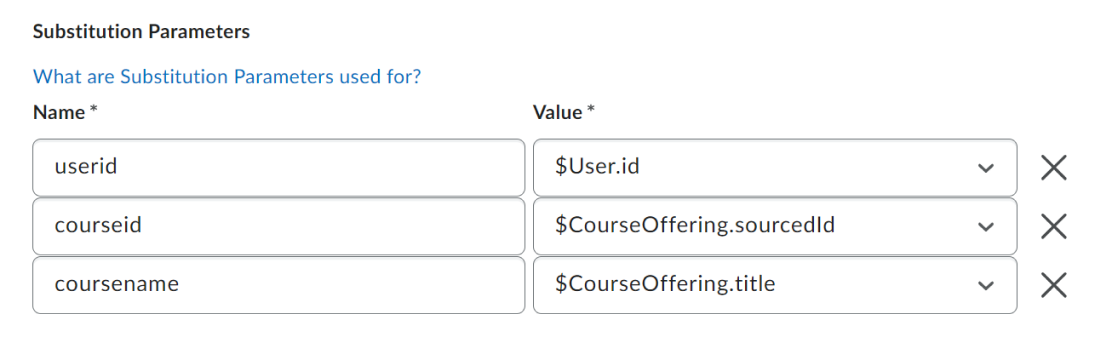
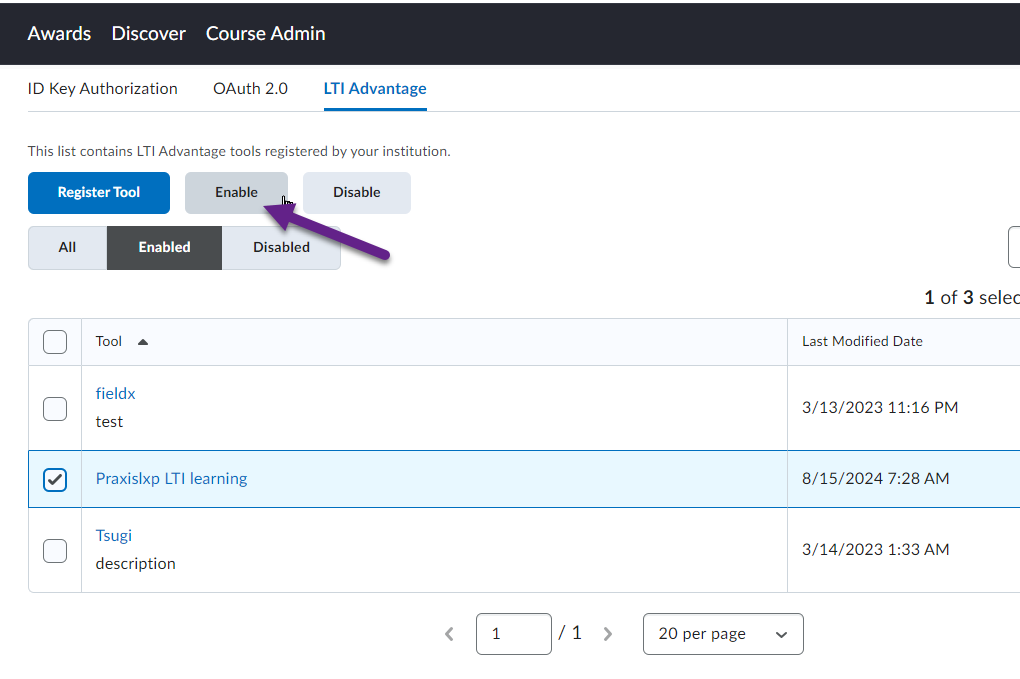
Finally, you need to Enable the LTI Tool. Simply select it, then click the Enable button
Create a new ployment for each course
It’s time to create a deployment for your course.
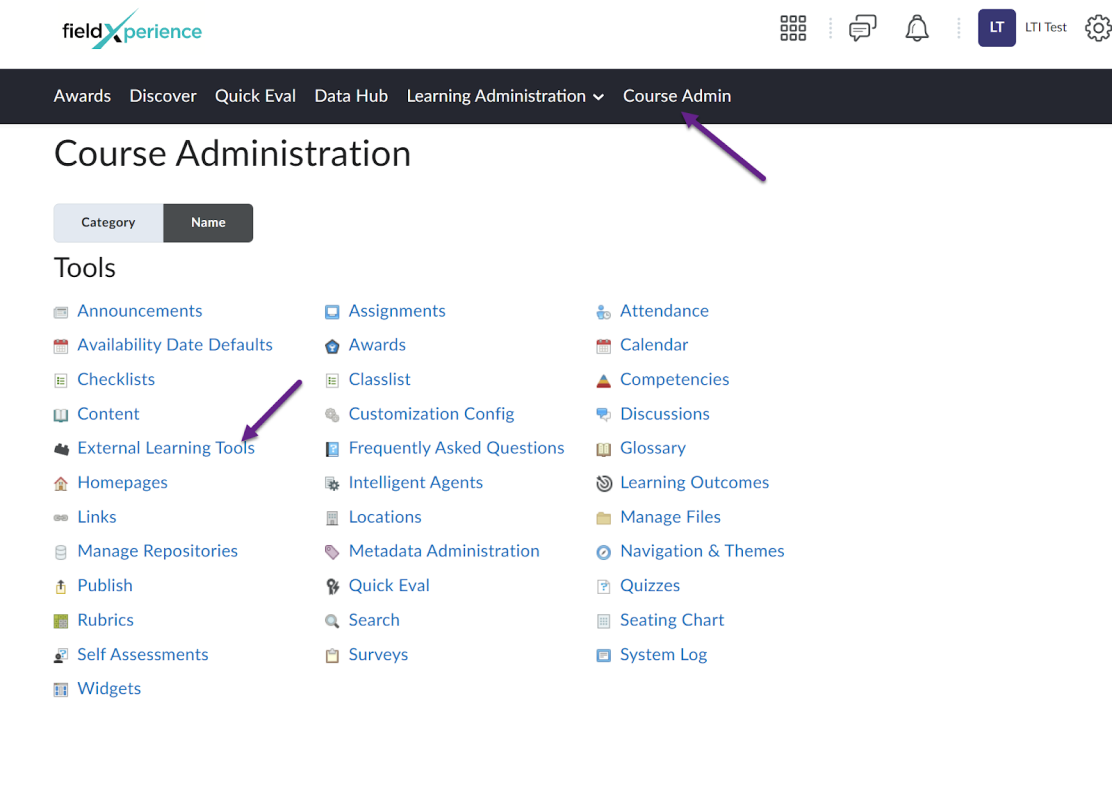
In the Course Admin, select External Learning Tools
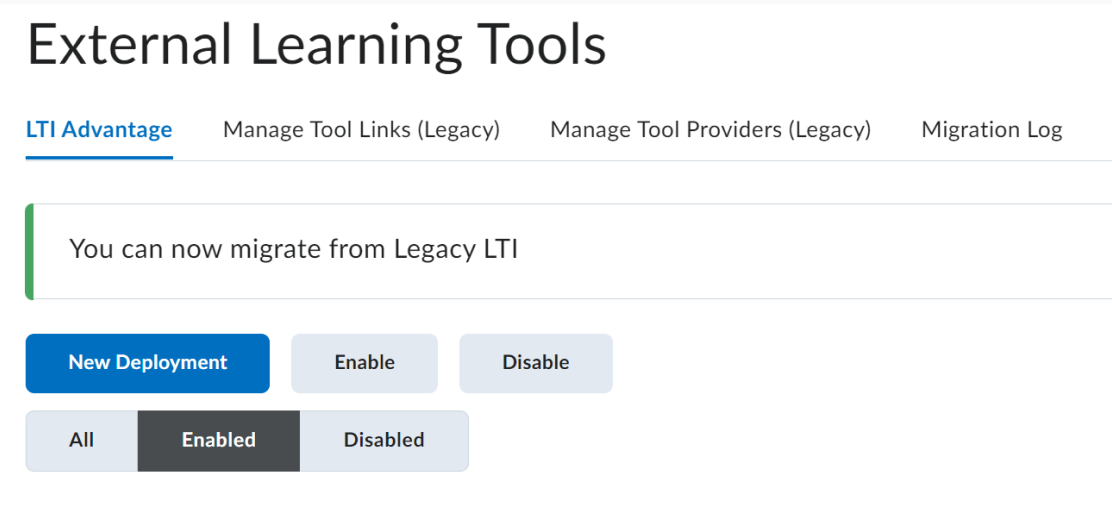
Click on the New Deployment button
In the deploy tool, select the previously registered LTI Tool, here Praxislxp LTI Learning .
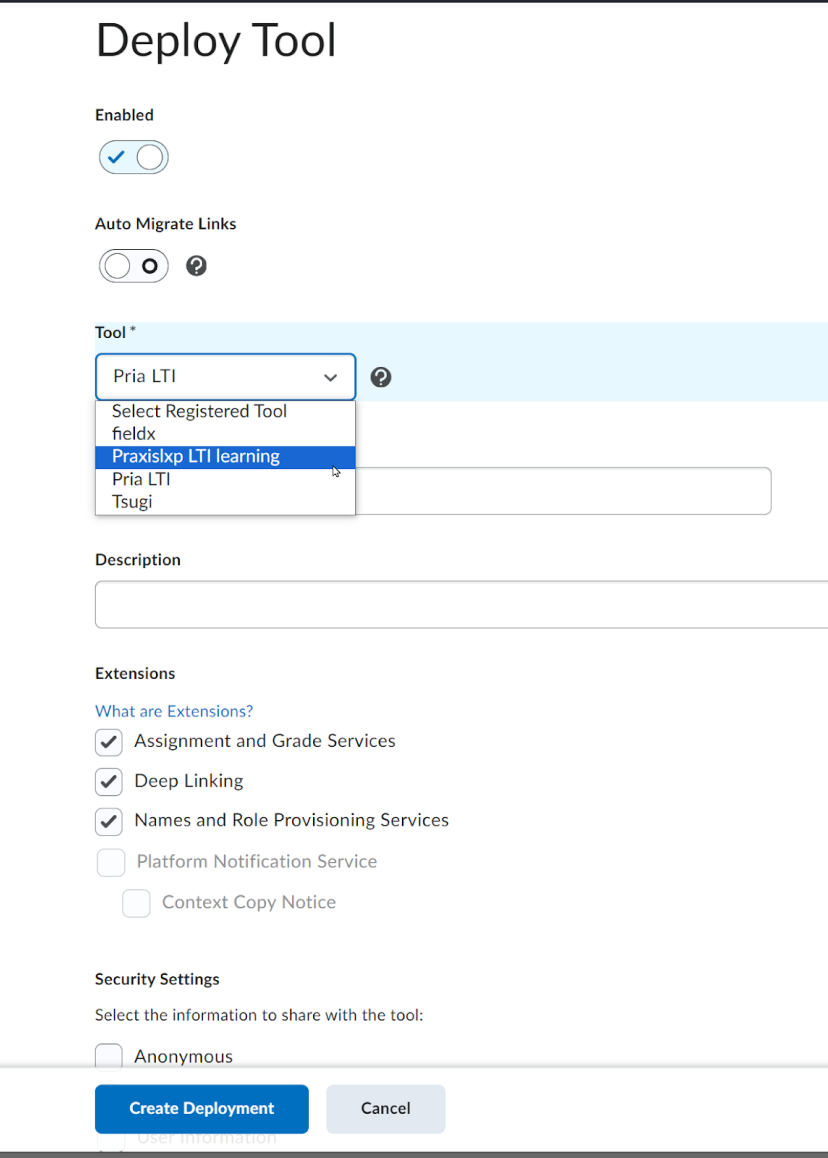
In the Name field, enter Praxis LXP, (or Pria if this is a deployment for Pria)

In the security settings, select User Information
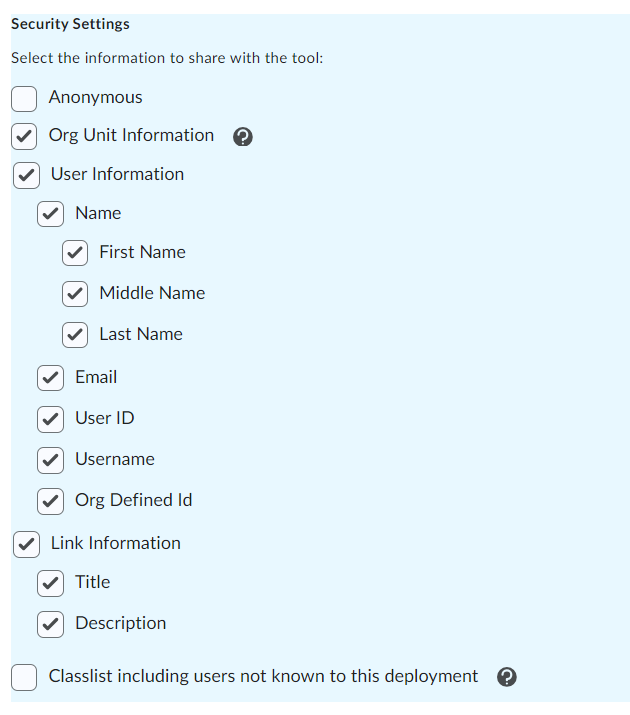
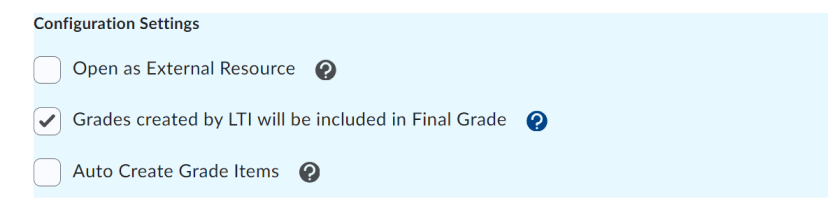
Check the Grades created by LTI for the Praxis LXP and leave unchecked for Pria
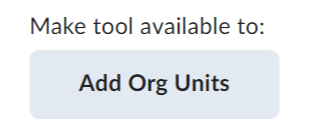
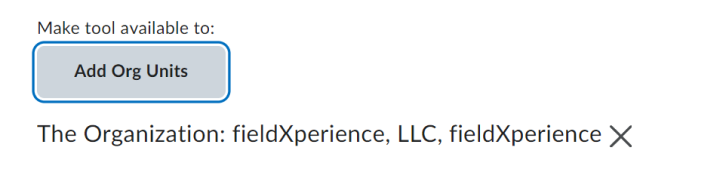
Click the Add Org Units to add this deployment to your organization
Find your organization in the list, then select This Org and all its descendants
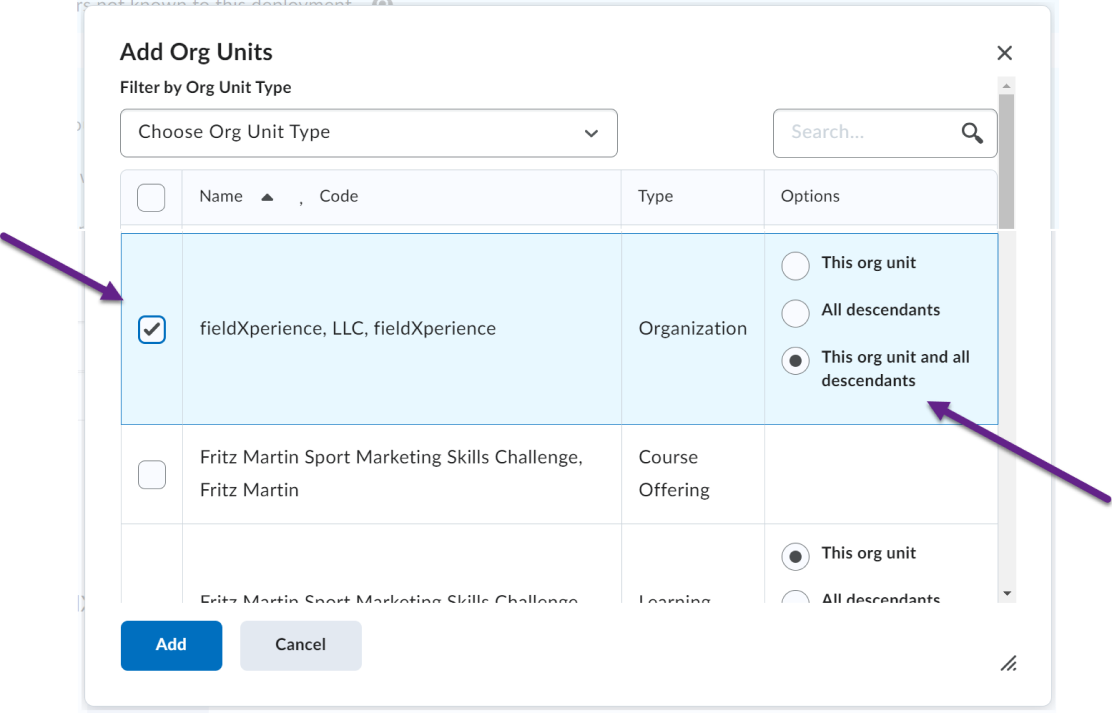
Click the Add button. The organization unit is now listed for this deployment
Click the View Deployments, and create a Pria LTI Deep Linking like below
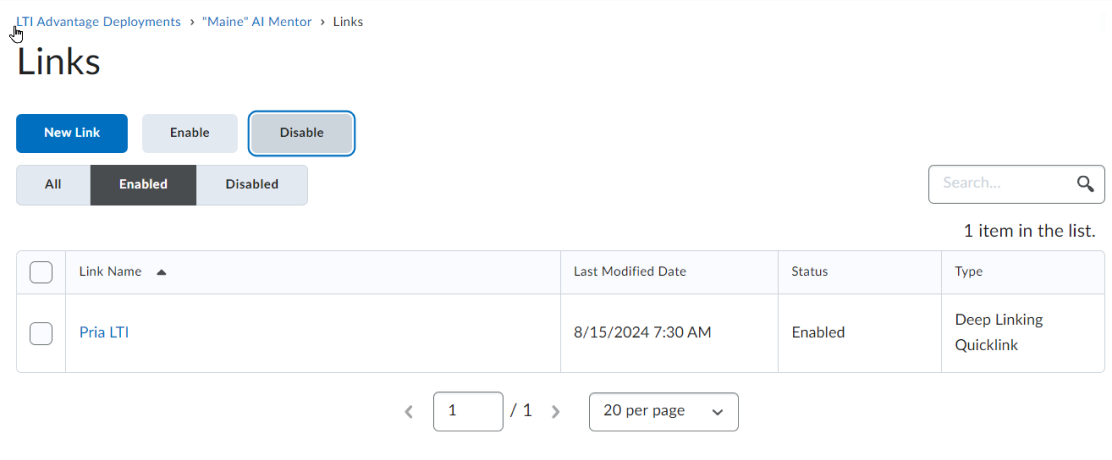
Click Create Deployment to finish the process

Your deployment is now created, make sure to Enable it
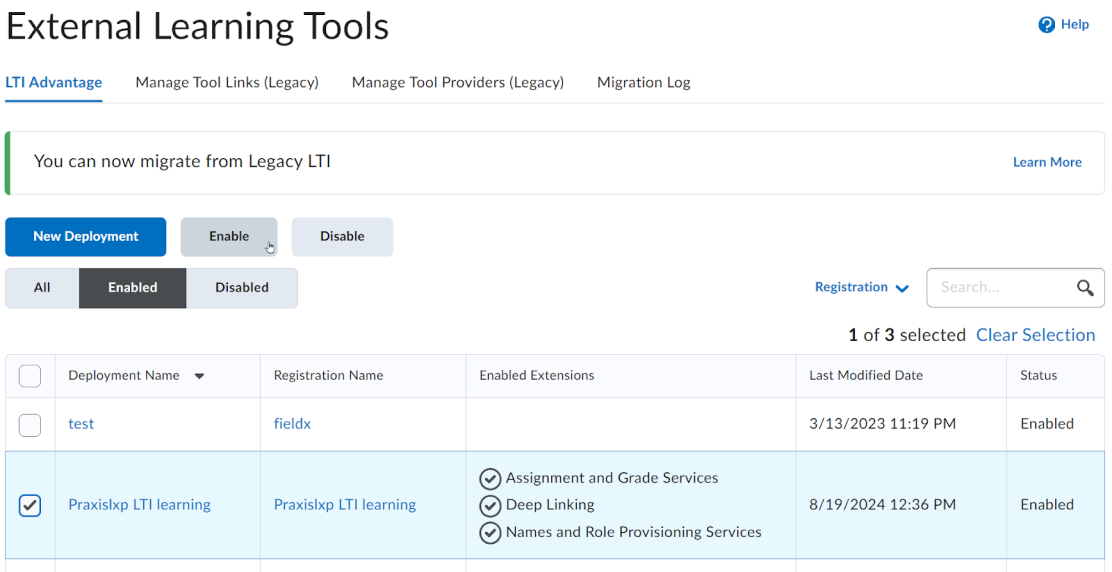
Add the deployment to your course
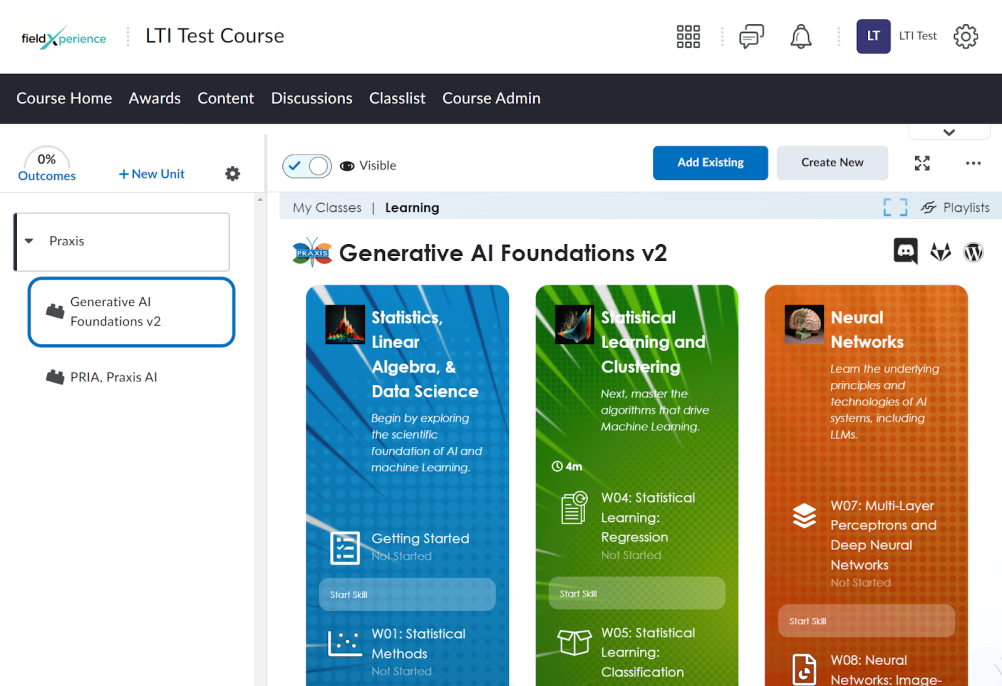
Once you have created a deployment for your LTI tool, select a Module, then click the Add Existing button
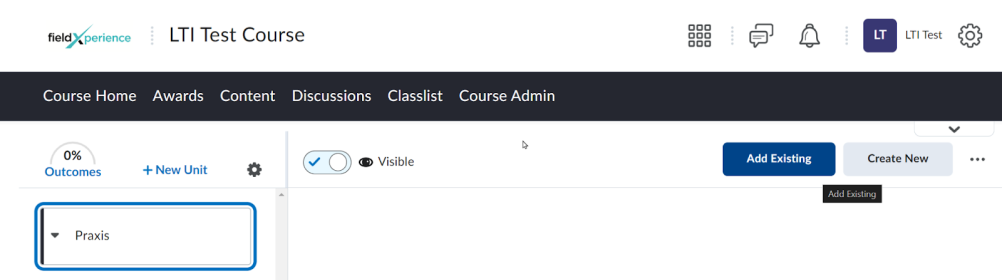
Select the Praxis LTI Deployment from the list like below:
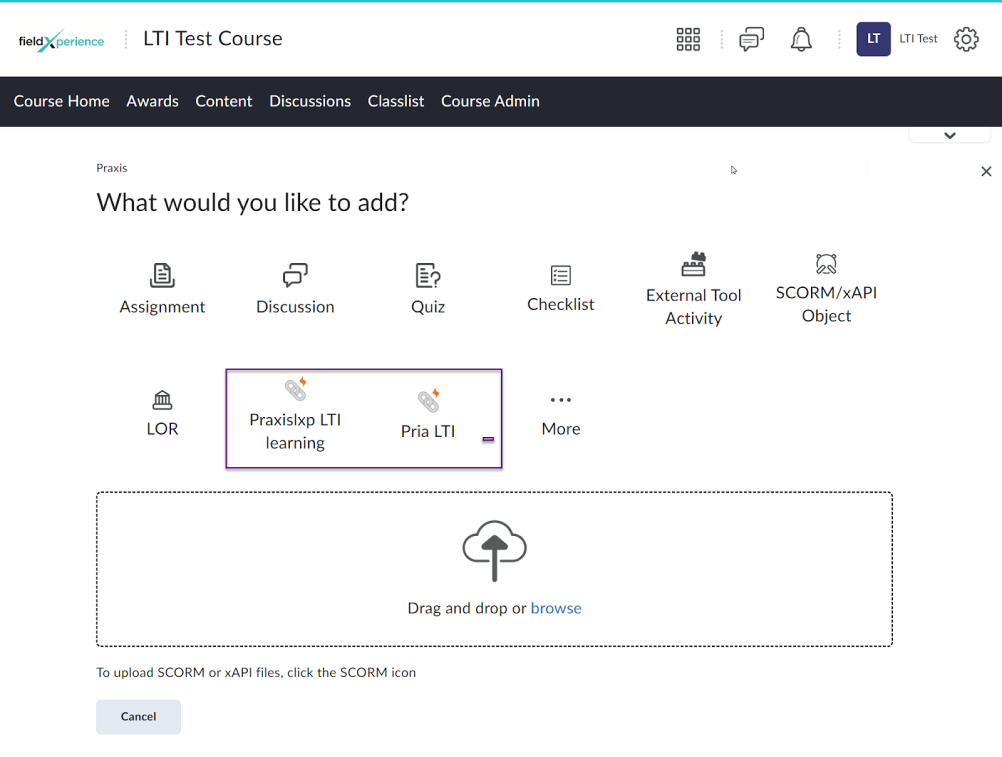
When clicking on the LTI, the component will display available resources,
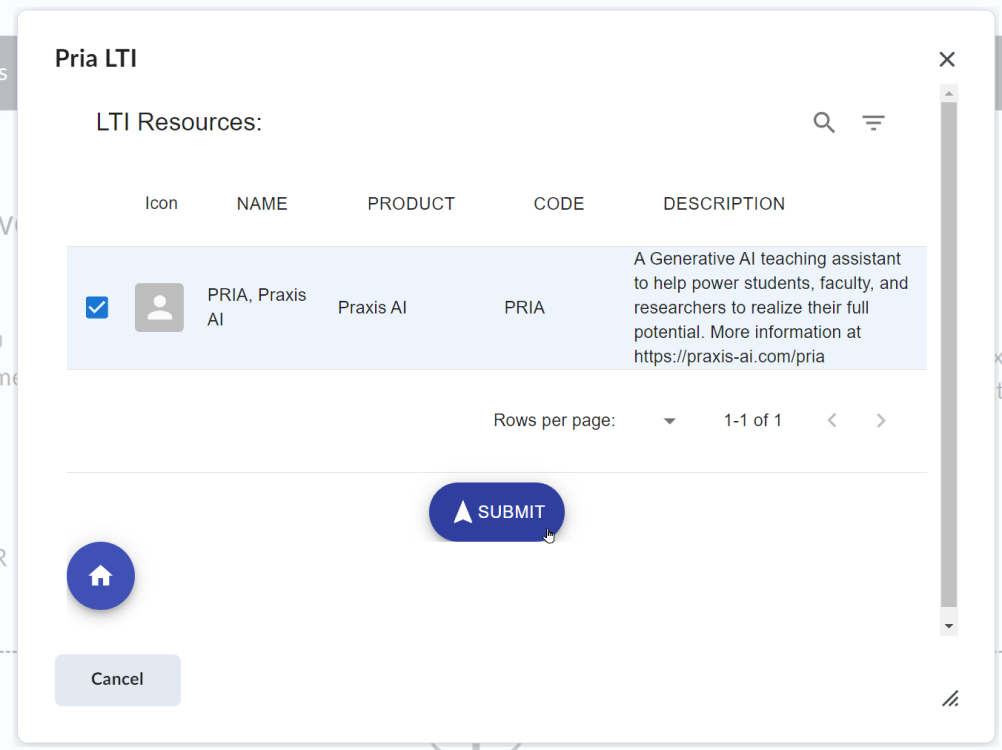
select Pria and click Submit
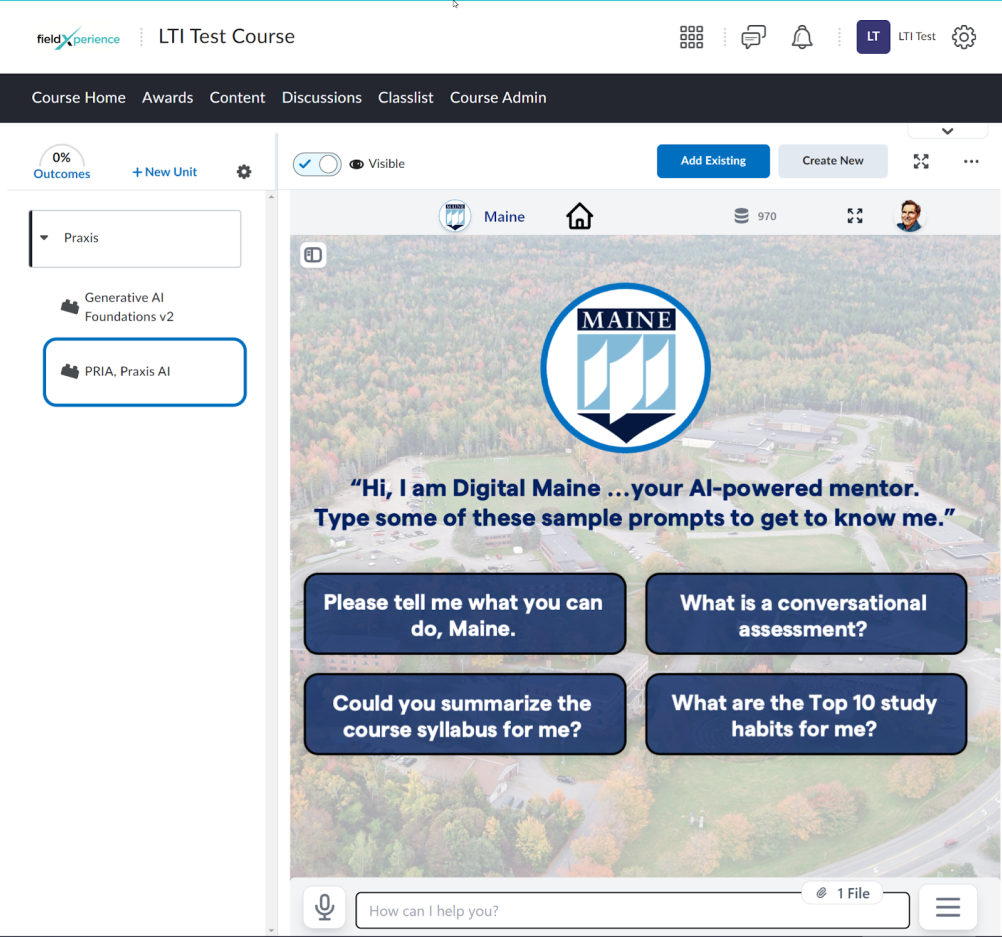
Or
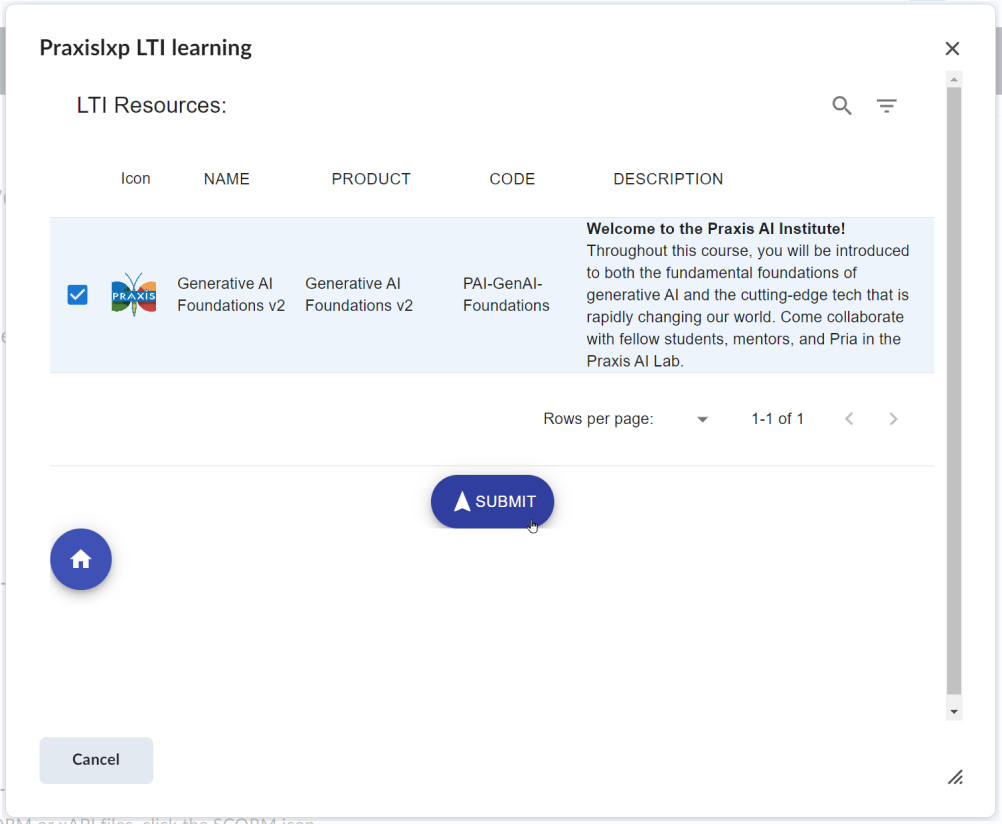
Select your resource then Click Submit
More Info
For more info on how to setup an LTI Component in D2L, visit
https://community.d2l.com/brightspace/kb/articles/23662-tool-registration-deployment-and-links
This is the complete list of Substitution variables available in Brightspace