

Setting Up Your Praxis AI Digital Twin
Welcome all faculty and admin! Embark on a transformative journey with Pria, your AI-powered digital twin. This page will:
● Introduce you to the core principles driving Pria's innovative approach
● Provide a general overview of its capabilities
● Offer in-depth resources exploring Pria's full range of functionalities
Discover how Pria can revolutionize your online teaching experience and enhance student engagement. Let's begin your adventure in AI-assisted education!
1. Using Trusted Sources
- Faculty control what resources Pria uses for answering questions
- Access to Canvas LMS content and additional files (syllabus, videos, etc.)
- Option to outsource to trusted resources like Google Scholar or PubMed
- All resources are protected within your IP vault in AWS
2. Instructor Personalization
- Praxis AI research has shown that personalizing the digital twin increases student usage from 18% to about 68%
- Personalization involves:
- Personality and Behavior Assessment: Myers-Briggs personality test to create a psychological profile
- Visualization and UX: Create an avatar and background for the digital twin
- Knowledge and Data: Upload relevant data, create an ecosystem of trusted sources, or use Praxis AI’s 28 trusted sources
3. LMS Integration
- Integrated with Canvas for a native chatbox experience
- Student access to the digital twin is automated, with your chosen avatar appearing in the bottom right corner of every page
- Faculty won’t need to do much on the integration side of things, Praxis has most of it taken care of
4. Faculty Dashboard
- Admin access grants faculty to view a history of all questions/interactions students have with your digital twin
- Provides insight to where the course materials may need more detail or clarification
- Allows for a quality check of the answers being given by your digital twin
- An additional way to monitor plagiarism attempts by students
5. Security and Privacy
- Student data is anonymized
- No data from you or students is used by the LLM for future AI training
- Pria use is FERPA compliant
- Faculty are assigned their own secure instance in AWS to protect IP
- Student answers are safe and protected under entitlements
Your Digital Twin, Your Vision
Welcome to the exciting process of creating your digital twin! This section provides a condensed overview of the steps outlined in our comprehensive guide: Creating Your Digital Twin.
Remember, you are the architect of your digital twin's environment. The time and effort you invest in this onboarding process directly correlates to your students' comfort and willingness to engage with your AI assistant. Let's make it uniquely yours!
The Onboarding Journey consists of a questionnaire and a personality prompt. You will begin by answering a series of thoughtfully designed questions to shape your digital twin's foundation. Then, you will generate a prompt that breathes life into your digital twin's personality. Whether you prefer a basic outline or an intricate character sketch, the choice is yours!
If you're looking for inspiration or assistance in setting up your digital twin, we're here to help! Simply fill out this form, and our team will guide you through the process. Remember, this is your opportunity to create a digital extension of yourself that will revolutionize your students' learning experience. Let's embark on this journey together!
Digital Twin Onboarding Steps
Open the Pria Dialogue box (bottom right corner of the Canvas page) and select “Create Digital Twin”

After you create a new Digital Twin, you’ll be taken to a page that looks like this:

From here, you’ll select “Onboarding Questions” and answer them in as much detail as you’d like. These questions are designed to capture your unique preferences, style, and approach. The page should look like this:

Answer each question, using the Previous and Next buttons to move between questions. The more genuine your answers are, the more personality your digital twin will have. Once done with an answer, press ‘I’m Done’ and move to the next.
Once you’ve answered all the onboarding questions, you should see a screen like this:

Click “Generate Prompt.” You’ll then see a page like this:

From here, you can review and edit the prompt as desired. Once you are satisfied with it, click “Use Prompt.” Now it is automatically copied to the AI Prompt field under the section ‘GPT and Personalization‘.
In the main toolbar, click “GPT and Personalization.” That will take you to this screen:

Save your updates by clicking the green “Update” button.
Now your digital twin is set up with the ability to respond and act as if they were you! This personalization enhances the student experience, making it more authentic and aligned with your unique teaching style
Uploading Trusted Sources
Now that you’ve created your digital twin, it’s time to refine the resources they can use to help answer student questions.
From the main toolbar, use the “Agents and Trusted Sources” page to select which of the 28 default tools you wish to disable (if any) for your instance.

To access your admin dashboard, the method depends on your Pria integration. If Pria is integrated through your Learning Management System (LMS), simply sign in directly through your LMS. However, if you're using Pria as a standalone service, navigate to https://www.hiimpria.ai/login and sign in there.

Once you are in your Digital Twin interface, click the house icon to access your admin dashboard.

In your admin dashboard, you have access to:
Histories
Each interaction with your instance is recorded and is made accessible to administrators on the History tab like below:

If you manage multiple instances, use the Instance Selector to display users for a specific instance.
Use the User search input box to search for a specific user by name or email.
Click on the green pencil button on a history record to view the conversation

Use the “View” button to display the interaction.

You can copy the secure link to your clipboard to easily share this interaction.
Metrics
In the Conversation History tab above, click on the “Metrics” button to access advanced visualization options.

You can change the type to Bar, Lines, etc. and extract the raw data used as CSV.
Feedback
See user feedback on the functionality of your Digital Twin.

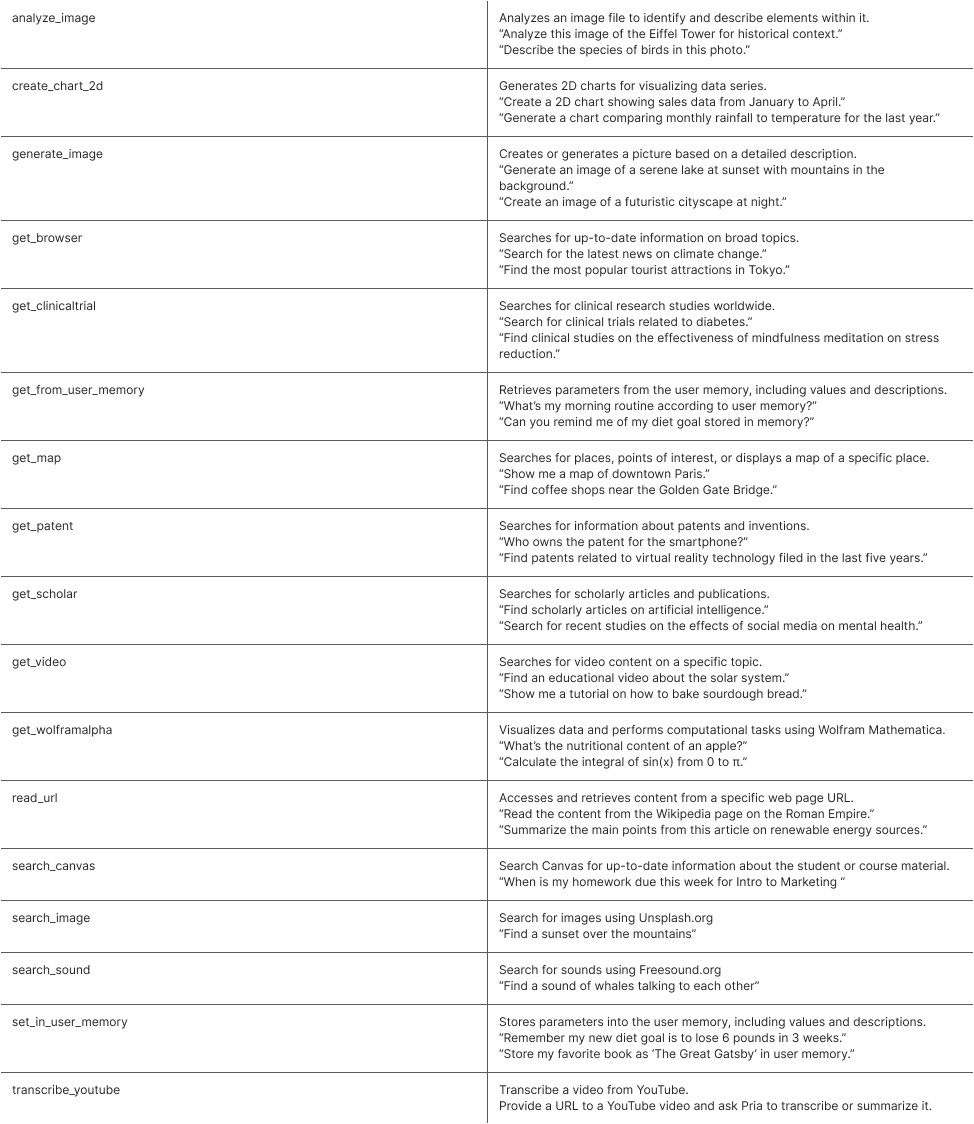
In addition to these default sources, your digital twin will have access to all content within your Canvas course and any other files you upload.
Files can be uploaded either from the startup page:

or from the editing page under “RAG and Files”:

Pria Admin Guide Updated 09/05/2024
Admin Guide This guide details the steps required to create an AI Digital Twin using Pria’s technologies for Admin and Faculty staff. Instance Files To ensure your digital twin has access to all class files, follow these steps: By following these steps, you ensure that your digital twin has all the necessary class files, enhancing …
Continue reading
Praxis Lab Guides

Pria Getting Started Guide Updated 09/05/2024
Pria Custom Theme Canvas Install Guide
Pria Custom Theme Canvas Install Guide Rev 1.4 June 2024 Introduction This document details the installation steps to set up Pria into Canvas using the Canvas Theme Editor . When installed in the Theme, Pria becomes embedded into Canva’s pages. Add Pria to your Theme To add Pria globally to a Canvas account, inject a …
Continue readingPraxis Lab Guides
